
Tech
Tablet Rental Mistakes That Can Disrupt Your Event and How to Avoid Them


Renting tablets for an event sounds straightforward until a device turns up half charged, loaded with the wrong app, or unable to hold a Wi-Fi signal in a packed hall. Most tablet rental problems trace back to planning gaps rather than bad luck: a compatibility check skipped, quantities underestimated, or setup left to the last afternoon before doors open. Every one of these issues is avoidable once you know what to check before signing a rental agreement.
Event organisers who’ve been caught out once rarely make the same mistake twice. They build a checklist, confirm requirements weeks in advance, and treat the hardware as part of the event infrastructure rather than a box ticked off at the last minute. Anyone who wants to rent tablets for events without last-minute panic should start with that same mindset: plan the tech the way you’d plan catering or staging, not as an afterthought.
The most common tablet rental mistakes are booking too late, ignoring app compatibility, underestimating device numbers, skipping a test run, and overlooking battery or charging arrangements. Avoiding them comes down to confirming exact requirements early, testing the full setup before event day, and working with a supplier who understands live events rather than just hardware supply.
Why These Mistakes Keep Happening
Event days rarely go exactly to plan, and tablets are often ordered the way office equipment is ordered: pick a model, pick a quantity, done. That approach works fine for a desk job. It falls apart the moment hundreds of attendees are queuing for check-in or a trade show floor is relying on every device working at once.
Decisions about tablet quantities and specifications are frequently made by whoever is managing logistics that week, not by someone who has actually tested the workflow on site. Without a dry run, small issues, such as a font too small to read or a charger that doesn’t fit the case, only show up once guests are already walking through the door.
This is exactly why so many event teams end up working with a specialist rather than a general electronics hire firm. Tablethire has spent years supplying devices specifically configured for events, which removes a lot of the guesswork that trips up first-time renters. A supplier who has done hundreds of events already knows the questions worth asking before the contract is signed.
Common Tablet Rental Mistakes That Disrupt Events
1. Booking Devices at the Last Minute
Waiting until two weeks before the event to book tablets limits your choice of models, configurations, and stock availability. Popular event dates get booked out fast, especially during conference season. Booking six to eight weeks ahead gives enough time for configuration, testing, and any last-minute swaps.
2. Ignoring App and Software Compatibility
Not every tablet runs every app smoothly, and some event tablet hire packages come with older operating systems that won’t support your check-in software or survey tool. Confirm the OS version, storage, and processor specs against your app’s requirements before committing, not after the devices arrive.
3. Underestimating How Many Tablets You Actually Need
This mistake shows up most at busy exhibitions, where organisers order exactly enough devices for expected footfall and nothing more. A single dead battery or crashed app then creates a queue. Anyone arranging tablet rental for exhibitions should order a small buffer, usually ten to fifteen percent extra, to cover breakages, charging cycles, and unexpected crowd spikes.
4. Skipping a Proper Test Run Before the Event
Tablets that work perfectly in a demo can behave differently once loaded onto the venue’s actual network. Screen brightness, font size, app loading times, and login flows all need testing under real conditions, ideally on site, at least a day before guests arrive.
5. Overlooking Battery Life and Charging Arrangements
A packed schedule with back-to-back sessions can drain a tablet faster than expected, and not every venue has enough power outlets near the stands or registration desks. Ask your supplier about charging cases, spare batteries, or rotation schedules so devices don’t die mid-session.
6. Picking a Supplier With No Event Experience
General IT hire companies are built for offices, not exhibition halls or conference floors. Tablet hire for trade shows needs suppliers who understand tight setup windows, on-site support, and the reality of hundreds of people handling devices over a single weekend. That experience is usually what separates a smooth event from a stressful one.
Mistake vs Fix at a Glance
| Mistake | Why It Causes Problems | How to Fix It |
| Booking too late | Limited stock and configuration time | Book 6 to 8 weeks ahead |
| Ignoring compatibility | Apps crash or won’t load | Confirm OS and specs before booking |
| Underestimating quantity | Queues and downtime on the day | Add a 10 to 15 percent buffer |
| No test run | Issues surface on event day | Test the full setup on site beforehand |
| Poor charging plan | Devices die mid-event | Arrange charging cases or spares |
| Inexperienced supplier | Slow support, avoidable errors | Choose an event technology specialist |
How to Avoid Tablet Rental Mistakes
Avoiding tablet rental mistakes comes down to five habits: book early, confirm compatibility, order a buffer of devices, test everything on site, and choose a supplier who specialises in live events. Following these steps in order removes most of the risk before it ever reaches the event floor.
1. Confirm your app and content requirements first
2. Book six to eight weeks before the event
3. Order extra devices as a buffer
4. Schedule an on-site test run
5. Ask about charging support and on-the-day assistance
Frequently Asked Questions
1. How far in advance should I book tablet rentals for an event?
Six to eight weeks is a safe window for most events, and longer for large exhibitions or peak conference months when stock runs low.
2. What happens if a rented tablet stops working during the event?
A reputable supplier offers same-day replacement or on-site support, which is why it’s worth confirming this before signing the contract, not during a crisis.
3. Can rented tablets be preloaded with my event app or branding?
Yes, most rental companies can preload apps, login credentials, and branded wallpapers ahead of delivery, so devices are ready to use straight out of the case.
4. How many tablets should I rent for a trade show stand?
Base the number on expected footfall, then add roughly 10 to 15 percent extra to cover charging cycles, breakages, and unexpected spikes in visitors.
5. Do rented tablets come with cases and chargers included?
Most packages include protective cases and charging equipment, but it’s worth confirming this in writing rather than assuming, since coverage varies between suppliers.
6. Is tablet rental cheaper than buying devices for a one-off event?
For single events or short campaigns, renting avoids the cost of storage, maintenance, and depreciation that comes with owning hardware outright.
Final Thoughts
Tablet rental mistakes rarely come from bad luck. They come from decisions made too quickly, without enough testing, or without asking a supplier the right questions early enough. Building in time for compatibility checks, a proper buffer of devices, and an on-site test run removes most of the risk before the event even begins.
Working with an established, event-focused supplier like Tablethire takes a lot of that pressure off your plate, since the planning and troubleshooting experience is already built into how the team operates. Getting the right partner on board early is often the single biggest factor in whether event technology helps the day run smoothly or becomes the thing everyone remembers for the wrong reasons.


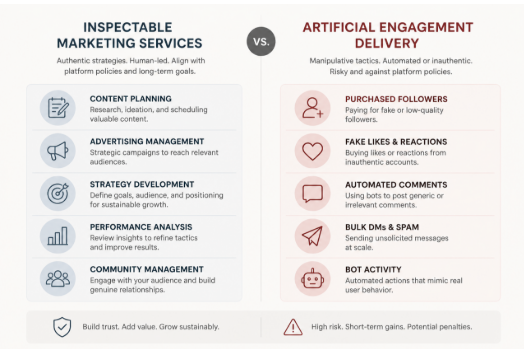
An Instagram growth service is not simply a purchase of more followers. It is a supplier decision that may involve account permissions, customer data, payment details and public-facing advertising. That makes the first question less “How quickly can it grow my account?” and more “What exactly will it do, and what access does it need to do it?”
A credible provider should be able to answer that plainly, in writing, before payment. If it cannot, the promised result is beside the point.
First, identify what is actually being sold
The service label matters less than the provider’s method, access requirements and ability to document the work.
“Growth” is used for several very different services:
- Social media management: planning content, publishing approved posts, handling comments and reporting on results.
- Strategy and analytics: audience research, profile improvements, content testing and measurement.
- Paid advertising: buying exposure through Meta’s advertising tools, with defined targeting, budget and campaign objectives.
- Creator or partnership outreach: identifying relevant collaborators and managing legitimate campaign activity.
- Artificial follower or engagement delivery: supplying followers, likes, comments, views or automated actions intended to make an account appear more popular.
The first four can be legitimate marketing services, though quality varies. The last category deserves much closer scrutiny. Meta has publicly acted against services that used bots or automation to inflate likes, followers, views and comments; its account of action against fake engagement and ad scams is a useful reminder that artificial activity conflicts with its policies.
That does not mean every provider using the word “growth” operates in the same way. It means terms such as “organic”, “targeted”, “real users” and “human-led” are claims to investigate, not proof of a method. Ask what actions are performed, by whom, on which accounts, and how the provider avoids artificial engagement.
For a separate explanation of the trade-offs around artificial audience delivery, see Brecktic’s guide to whether buying Instagram followers is safe. The practical issue is not merely whether a number rises; it is whether the activity is authentic, relevant and safe for the account.
The non-negotiable rule: do not hand over credentials
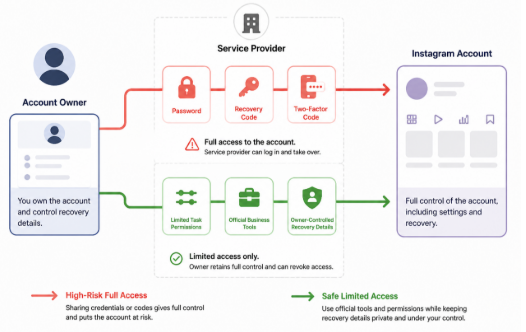
Safer onboarding limits permissions to the defined task and keeps authentication and recovery controls with the account owner.
Do not provide an Instagram password, recovery code, login code or two-factor authentication code to a growth provider. These are authentication secrets, not routine onboarding information. A request for them is a major security warning, even if the website appears polished or the provider says access is needed to “set up” the service.
Meta specifically advises people not to give Facebook or Instagram passwords to third-party sites or apps offering followers, likes or similar services outside official login mechanisms. A password can enable a third party to change recovery details, approve new sessions or lock the account owner out. A one-time code can be equally consequential if it is used to approve a login.
A safer workflow minimises access:
- Give a contractor only the role or task access needed for a defined job, where Meta’s current tools support it.
- Use official business or advertising tools for paid campaigns rather than sharing a personal login.
- Treat connected apps as permissions, not harmless add-ons. Check what an app can read, publish or manage before authorising it.
- Keep the account owner’s email address, phone number and recovery options under the owner’s control.
- Enable two-step verification. The UK National Cyber Security Centre recommends it for important accounts because it adds a further check if a password is stolen.
Permission names and menus change, so confirm the live settings in Meta’s help documentation before assigning access. The governing principle does not change: give the least privilege necessary, for the shortest practical period.
Red flags: stop signs versus questions to investigate
A useful vetting process separates reasons to walk away from issues that need clarification.
Stop signs
Leave the checkout process if a provider:
- asks for a password, recovery information or authentication code;
- promises a guaranteed volume of followers, likes or comments on a fixed timetable without explaining the source;
- offers immediate delivery of large quantities of engagement;
- cannot say whether bots, automated actions, engagement pods or follow-unfollow tactics are involved;
- uses urgency to push payment before terms can be reviewed;
- has no identifiable business, working support route, privacy information or commercial terms; or
- directs payment to an unrelated individual or asks for an unusually hard-to-reverse payment method.
None of these signals alone proves criminal intent. Together, they point to an unacceptable combination of security, supplier and reputational risk.
Caution signs
Pause and ask more questions when a provider:
- calls its service “organic” but provides no operational explanation;
- shows only follower-count screenshots rather than methodology or meaningful outcomes;
- makes broad claims about algorithm access, insider knowledge or guaranteed reach;
- will not define cancellation, refunds, renewal or notice periods;
- cannot explain how it handles client contact details and account data; or
- presents testimonials but no verifiable business identity or independent reputation trail.
The important distinction is between a provider that can document its process and one that substitutes slogans for evidence.
Run a five-minute website and checkout audit
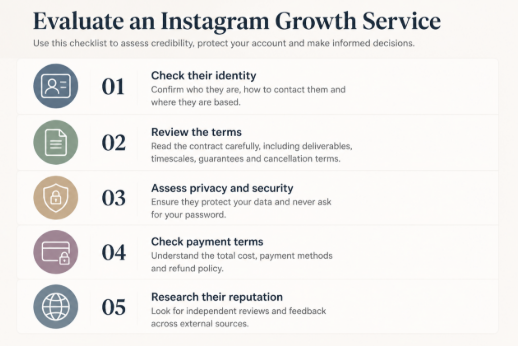
A quick supplier audit can expose unclear identity, access demands and weak commercial terms before payment.
Before paying, perform a basic supplier check. This is not a formal certification process; it is a quick way to decide whether the provider merits further discussion.
1. Check identity. Look for a legal business name, a physical or registered contact route, a company number where applicable, and a domain-based support address. For UK customers, compare company details with the public Companies House register where a company number is supplied. A brand name alone is not enough to establish who will hold your payment or data.
2. Read the commercial terms. Find the total price, billing frequency, cancellation process, refund conditions, delivery description and complaint route. Vague wording such as “results may vary” does not replace a clear explanation of what is being purchased.
3. Inspect data handling. A privacy notice should say what information is collected, why it is used and how to contact the organisation. Be especially wary if a supplier requests more account data than its stated service requires.
4. Check the payment path. Confirm that the checkout domain, merchant description and business identity are consistent. Prefer a payment route that offers a record of the transaction and a defined dispute process. Do not confuse a padlock icon with proof that a business is trustworthy; it only indicates a protected connection.
5. Search beyond the provider’s own site. Look for a durable trail: business listings, editorial mentions, support responsiveness and reviews that discuss specific work rather than repeating generic praise. Treat reviews as one input, not conclusive proof.
Test the delivery model, not the marketing language
Ask prospective providers these questions in writing:
- What actions will you take on my behalf?
- Will any action be automated? If so, which action and with what safeguards?
- Where does the prospective audience come from, and how is relevance to my UK market assessed?
- Are followers, likes or comments purchased, incentivised, exchanged or otherwise artificially delivered?
- What account access is required, and why is each permission necessary?
- What is the smallest paid test, and how can I end it?
A strong answer describes a process: content work, campaign setup, audience research, outreach, ad spend management or reporting. A weak answer circles back to a result: “real growth”, “premium followers” or “safe engagement”.
Be particularly careful with “guaranteed” results. Marketing can set service levels, such as a reporting schedule or number of approved posts. It cannot credibly guarantee that a particular number of people will become genuinely interested in a business on demand.
Measure outcomes that matter
Follower totals are easy to display but weak evidence of commercial value on their own. They do not show whether new people are relevant to the business, remain engaged, visit a website, enquire, buy or remember the brand.
Ask for reporting that distinguishes activity from outcome. Depending on the objective, useful reporting may include:
- the audience and geography the work was intended to reach;
- content themes and creative tests undertaken;
- reach and meaningful interactions over a stated period;
- profile visits, link actions, enquiries or sales where tracking is available;
- paid-media spend separated from agency fees;
- source data from the platform, not just a designed summary; and
- lessons, limitations and the next test.
No single metric proves success. A good report explains what happened, how it was measured and what decision follows. It should also make it possible to spot a mismatch between a rising follower count and an audience that has little reason to care about the account.
UK advertising: keep commercial content identifiable
Growth work can overlap with influencer marketing, gifted activity and paid collaborations. Where content is advertising, UK guidance expects it to be obviously identifiable. The ASA and CAP’s guidance on recognising ads in social media and influencer marketing explains that labels such as “Ad” should be clear and prominent, generally before people need to engage with the content.
Responsibility can extend to brands, agencies and influencers. The exact position depends on the relationship and content, so this is general information rather than legal advice. Build disclosure review into campaign approval instead of treating it as a last-minute caption edit.
A simple scorecard for any provider
Use this editorial scorecard before proceeding:
| Area | Pass | Caution | Stop |
| — | — | — | — |
| Identity | Verifiable business and responsive contact route | Limited history or incomplete details | No accountable identity |
| Access | Least-privilege permissions, no credentials | Access explanation is unclear | Requests password or codes |
| Method | Specific, documented process | Vague claims need answers | Artificial delivery or undisclosed automation |
| Terms | Clear price, scope and exit route | Ambiguous clauses | Hidden renewal or no cancellation route |
| Reporting | Objectives, source data and learning | Follower-led reporting | Only promises and screenshots |
| Testability | Small, reversible trial | Large minimum commitment | Pressure for a major upfront payment |
One stop result should end the conversation. Caution results are not an automatic rejection, but they should be resolved in writing before money or permissions change hands.
If you have already shared access
Act promptly. Change the Instagram password from a trusted device, turn on two-step verification, and review account contact and recovery details. Check active sessions and connected apps, remove anything unfamiliar, and review any business or advertising access that you do not recognise. Monitor recent posts, messages, profile edits and payment activity.
If you can no longer access the account, use Instagram’s official recovery route. Retaining control of the linked email address and phone number can be important to recovery, so secure those accounts too. If payment details were shared, contact the payment provider promptly and preserve relevant records, including receipts, emails and screenshots.
Choose growth mechanisms you can inspect
The lowest-risk options are generally the ones a client can see and evaluate: stronger content planning, a clear profile proposition, legitimate collaborations, responsive community management and advertising run through official tools with defined objectives and budgets.
A provider does not need to promise artificial popularity to be useful. It should explain its method, restrict access, document the commercial relationship and report on outcomes relevant to the business. For further reading on account-safety considerations, Brecktic provides additional context.
The core test is simple: if a service cannot explain how it works without asking you to trust a vague promise or surrender control of the account, it is not ready to be hired.
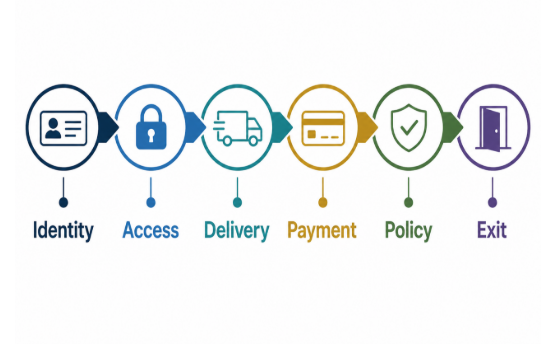
A practical six-control framework for assessing an Instagram growth service before granting access or paying.
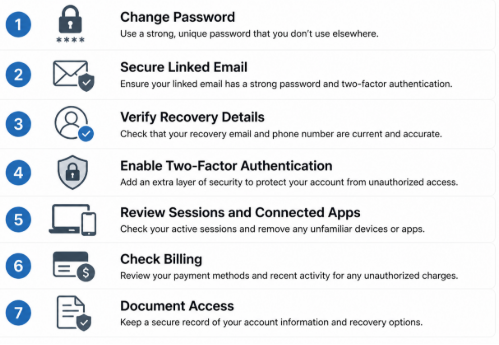
Immediate account-security checks after sharing access with an external provider.
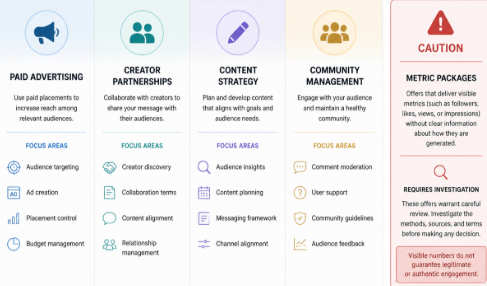
Different service models require different checks; a headline metric does not explain how activity is generated.

Business communication has changed dramatically over the past decade. Teams no longer depend entirely on desk phones, physical offices, or traditional telephone networks to stay connected. Employees work from different cities, customer support teams operate across time zones, and businesses increasingly expect communication tools to work alongside the digital applications they already use. In this environment, VoIP technology has become an important part of how modern organizations handle voice communication.
Voice over Internet Protocol, commonly known as VoIP, allows voice calls to travel over internet networks rather than traditional telephone infrastructure. That simple change opens the door to a much more flexible communication environment. Businesses can connect employees, customers, sales teams, support agents, and distributed teams through software-based phone systems accessible from computers, smartphones, IP phones, and other connected devices.
But VoIP is not simply about making cheaper phone calls. Modern VoIP solutions can include call routing, interactive voice response, call recording, analytics, conferencing, voicemail, CRM integration, mobile access, and automation. In other words, the business phone system is becoming less like a standalone appliance and more like a connected software platform.
What Is VoIP Technology and How Does It Work?
VoIP technology converts voice conversations into digital data and transmits that information through an internet connection. Instead of depending on a dedicated traditional telephone line for every conversation, VoIP systems use IP networks to establish and manage calls.
A typical business VoIP environment may include cloud infrastructure, SIP services, IP phones, computers, mobile applications, call management software, and business integrations. When these components are designed properly, employees can communicate through a unified system, whether they are working from an office, home, or another location.
- How VoIP Works
When a person speaks during a VoIP call, the system converts the audio into digital data packets. These packets travel through an IP network and are reconstructed as audio at the receiving end, allowing the conversation to happen in real time.
The process sounds technical, but the user experience can be remarkably simple. An employee can open a VoIP application, select a contact, and make a call much like they would with a conventional phone.
- VoIP vs Traditional Phone Systems
Traditional phone systems often depend on physical infrastructure, fixed lines, and hardware installed at specific locations. VoIP shifts much of that communication infrastructure into software and internet-based services.
This makes VoIP particularly useful for organizations that need flexibility. Instead of treating every new employee or office location as a major telephone infrastructure project, businesses can configure users and extensions through a software-based communication system.
You may also like: Top 10 VoIP Billing Solutions for Modern Businesses
Why VoIP Is Becoming Important for Modern Businesses
Modern companies need communication systems that can keep up with changing work patterns. Employees may move between offices, work remotely, travel frequently, or communicate with customers from mobile devices. A communication platform that is tied too closely to a physical location can become difficult to manage as the organization grows.
VoIP addresses this challenge by separating business communication from a specific physical phone line. Users can often access business calling features through compatible devices and applications, giving organizations greater flexibility in how they structure their communication workflows.
- Flexible and Remote Communication
One of the most useful aspects of VoIP is its support for distributed teams. Employees can use business communication tools from different locations while remaining connected to the organization’s phone system.
A sales representative working from home, a support agent in another city, and an employee working from the company office can all operate within the same communication environment. This flexibility is especially useful for businesses with hybrid and remote work models.
- Cost-Effective Business Calling
VoIP can also help businesses manage communication expenses by using internet connectivity instead of relying entirely on traditional telephone infrastructure. The overall cost depends on factors such as provider plans, call volume, features, infrastructure, and implementation requirements.
For businesses with multiple locations or significant calling requirements, consolidating communication through a VoIP platform can simplify management while potentially reducing certain telecommunication expenses.
Key Features of Modern VoIP Solutions
Modern business phone systems can do much more than connect two people on a voice call. VoIP platforms can combine calling, messaging, conferencing, call management, analytics, and integrations into a single communication environment.
This makes VoIP particularly valuable when communication needs to connect with broader business workflows. For example, a customer call can be associated with a CRM record, while a support interaction can be recorded and analyzed for quality management.
- Call Routing and IVR
Call routing and Interactive Voice Response (IVR) help businesses direct incoming calls to the right department or employee. Customers can select options from an automated menu, while routing rules can determine where calls should go based on business hours, availability, department, or other conditions.
A well-designed IVR system can reduce unnecessary transfers and help customers reach the appropriate team more efficiently. It can also provide basic information automatically without requiring an employee to handle every request.
- Call Recording and Analytics
Call recording can help businesses review conversations, train employees, maintain quality standards, and understand customer interactions. Depending on the system and applicable requirements, businesses can configure recording policies around specific users, departments, or call types.
VoIP analytics can provide additional visibility into communication activity. Metrics such as call volume, duration, missed calls, wait times, and agent activity can help managers understand how communication processes are performing.
- Video Calling and Team Collaboration
Many modern VoIP platforms extend beyond voice communication to include video meetings, conferencing, screen sharing, messaging, and collaboration features. This allows organizations to bring multiple communication methods into a connected environment.
Instead of switching between several unrelated applications, teams may be able to manage different forms of communication through a unified platform. That can simplify daily workflows, particularly for distributed teams.
Benefits of VoIP for Business Communication
The biggest advantage of VoIP is the flexibility it brings to business communication. Organizations can configure users, extensions, call flows, applications, and integrations according to their operational needs.
VoIP can also make it easier to connect with other digital systems. This is important because business conversations rarely happen in isolation. A customer call may involve a CRM record, a support ticket, an order, a sales opportunity, or a previous interaction.
- Easy Scalability
Traditional phone infrastructure can become complicated when a business adds employees, departments, or locations. VoIP systems can often make expansion more straightforward because users and extensions can be managed through software.
A growing company can add new employees, configure extensions, modify call routing, and introduce new communication features without necessarily redesigning its entire telephone infrastructure.
- Business Application Integration
VoIP can integrate with CRM, help desk, ERP, collaboration, and other business applications. With the right integration, employees can make calls directly from business software, access customer information during conversations, or automatically associate call activity with customer records.
This creates a more connected workflow. Instead of communication data remaining inside the phone system, it can become part of the broader digital customer and business experience.
How Businesses Are Using VoIP Technology
Businesses use VoIP across many functions because voice communication remains important as digital channels continue to expand. Sales teams use calls to communicate with prospects, support teams handle customer issues, and internal teams use voice and video for collaboration.
The technology is especially useful when organizations need communication across multiple locations while maintaining centralized control over users, call flows, and business numbers.
Customer Support and Call Centers
Customer service operations can use VoIP features such as IVR, call queues, call recording, agent routing, monitoring, and analytics. These capabilities help organizations structure large volumes of incoming and outgoing communication.
Call center managers can also use reporting features to understand call patterns and identify areas where customer communication processes may need adjustment.
Remote Teams and Distributed Workforces
VoIP makes it easier for remote employees to remain connected to the same business communication environment as office-based employees. Users can access calling features through supported desktop applications, mobile applications, or IP devices.
This can help businesses maintain consistent communication practices even when employees are distributed across different locations.
VoIP Security and Reliability Considerations
Because VoIP communication travels through digital networks, security must be an essential part of system design. Businesses should consider authentication, encryption, access controls, network security, fraud prevention, software updates, and monitoring when deploying a VoIP environment.
Reliability is equally important. Voice communication depends on network performance, bandwidth, latency, and system availability. Businesses should therefore evaluate their network infrastructure and consider appropriate redundancy, monitoring, backup connectivity, and disaster recovery strategies.
A reliable VoIP solution is not simply one that works when everything is normal. It should also have a plan for handling network disruptions, hardware failures, service interruptions, and unexpected traffic.
Challenges of Implementing VoIP
VoIP offers significant flexibility, but implementation still requires careful planning. Poor network quality can affect call performance, while incorrectly configured systems may create security or routing problems. Businesses also need to consider how the new communication platform will interact with existing applications and workflows.
Another challenge is user adoption. Employees need to understand how to use new calling features, applications, voicemail systems, conferencing tools, and collaboration capabilities. Proper configuration, testing, training, and ongoing support can make the transition much smoother.
For organizations with complex requirements, custom development may also be necessary. A business might need specialized call routing, custom dashboards, CRM integration, mobile applications, APIs, or unique automation workflows that are not available in an off-the-shelf platform.
How Moon Technolabs Can Help With VoIP Development
Moon Technolabs can help businesses develop custom VoIP solutions around their communication requirements. This can include VoIP application development, SIP integration, call management, IVR, call routing, conferencing, CRM integration, mobile communication, analytics, and other business communication capabilities.
The development approach can be tailored to the organization’s existing infrastructure and future growth plans. From designing the communication architecture to developing, integrating, testing, and maintaining the solution, a custom approach can help businesses create a VoIP environment that fits their workflows rather than forcing those workflows into a rigid communication platform.
Conclusion
VoIP technology is changing business communication by making voice services more flexible, software-driven, and connected. Businesses can move beyond traditional phone systems and introduce features such as intelligent call routing, IVR, analytics, recording, conferencing, mobile access, and business application integrations.
The real value of VoIP comes from how these features work together. A business can connect its phone system to customer data, support workflows, remote teams, and operational tools, making communication a more integrated part of the digital business environment.
As organizations continue adopting flexible and distributed working models, communication technology needs to support people wherever they work. VoIP provides a foundation for that while giving businesses greater control over how they manage, monitor, integrate, and scale calls.

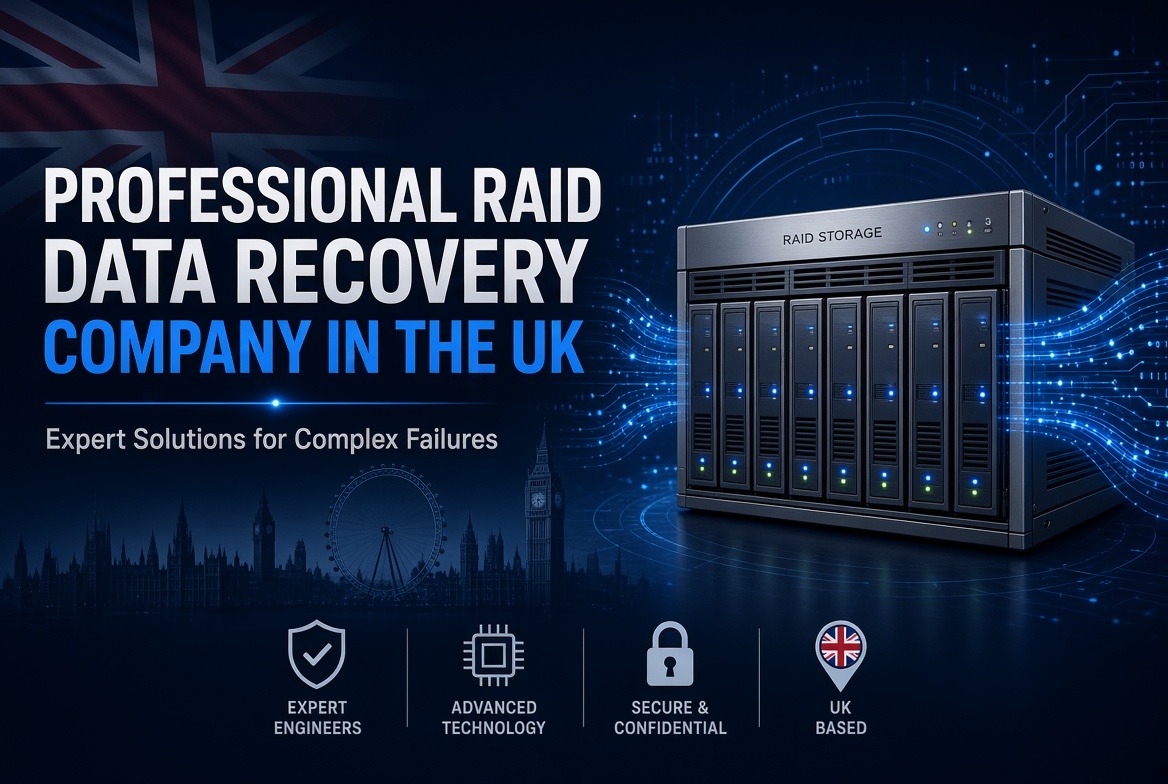
Introduction
While RAID systems are designed for speed, redundancy and peace of mind, when they fail, the consequences can be much more complicated than just a single hard drive failure.
A basic recovery solution is just not going to do the job due to multiple disks, striped or mirrored data, and controller-level configurations.
This is where a Professional RAID Data Recovery Company in the UK begins to be of great help. Whether it’s a small studio or a national company, RAID arrays are vital to the smooth functioning of business operations, and an hour of downtime represents an hour of lost revenue, missed deadlines, and increased stress.
In a RAID 5 setup, if your array has degraded, in a RAID 0 setup if the stripe is corrupted, or in a RAID 6 setup if the RAID 6 controller fails, a skilled solution is the key to recovering all data and preventing data loss.
Let’s start by talking about the reasons why RAID failures are different:
The difference between a single drive failure and a RAID failure is that RAID failures are dependent on each other.
Data is not stored in a linear fashion on one disk, but rather is divided, striped, mirrored or parity-checked across multiple disks based on the RAID level used. This means that:
- If one drive fails in a RAID 0 array, all data is lost because there is no redundancy.
- RAID 5 and RAID 6 arrays are based on parity data, and when more drives fail than the array can handle, rebuilding is very complex.
- Even the steps of rebuilding the array can cause a logical disorder if the controller malfunctions, is corrupted by a virus or other software, or if it is incorrectly rebuilt.
- Recovery can be much more difficult as a result of human error, like trying to rebuild yourself or install drives in the wrong order.
The layers are exactly that these are the reasons why in general recovery software or even an unskilled technician might cause more harm than good.
A special team is aware of the RAID controller logic, stripe size and parity algorithms necessary to prevent the array from being reconstructed safely.
What Sets a Professional RAID Recovery Service Apart
A UK Professional RAID Data Recovery Company is a company that employs engineers who have successfully recovered thousands of real-world RAID failures on all of the most common RAID configurations from RAID 0 to RAID 10, as well as proprietary NAS and SAN systems from Synology, QNAP, Dell, HP, and others.
These are some of the benefits of having real RAID experts:
- Cleanroom Facilities: Physical drive failure (Clicking, Spindle damage, Head crashes) .Dust free environment needed to prevent further drive damage during disassembly.
- Instead of working on the live drives, engineers develop images, sector by sector, to preserve the original data while virtually reconstructing the array using Custom Imaging Tools.
- Deep Controller Knowledge: All RAID controllers have their own unique metadata. The correct stripe order, block size and rotation pattern can only be recovered with the help of reverse engineering. This is a process and does not involve just any software.
- No-Data, No-Fee Policies: reputable providers will not charge if the recovery is unsuccessful, meaning that the client will not be at any financial risk.
Businesses with sensitive or regulated data should expect providers to adhere to strict data protection protocols during recovery.Businesses with sensitive or regulated data should expect that providers will adhere to strict data protection protocols during the recovery.
The following is a list of basic RAID failure scenarios that we solve for you.
While there are many possible ways that RAID can fail, some of the most common are:
- Multiple Simultaneous Drive Failures: Two or more drives failing near each other, more than the array’s fault tolerance.
- Failed RAID Rebuilds: A rebuild that failed or was started by the incorrect order, typically making the problem worse before it gets better.
- Corrupted File Systems: The array is physically OK, but the file system (NTFS, EXT4, XFS, etc.) on top of it is corrupted.
- NAS and Server Crashes: Power surges, firmware bugs, or overheating and the entire storage server crashes.
- Accidental Reconfiguration: drives that have been reformatted, reinitialised or assigned to the wrong RAID level.
In all three, time and technique are crucial. If you continue to use a failed array or try to fix it any further without the proper expertise. The chances of recovering are much lower.
The Recovery Process: What to expect?
Usually, there is a structured and professional process that takes place:
- Initial Consultation: Provide information about symptoms, RAID level and recent events – such as rebuilds, power loss, drive replacement, etc. – to provide context for urgency and likely causes.
- Diagnostic Evaluation: Drives are checked one by one, and in array, for physical, logical or controller problems.
- Imaging: all drives are individually imaged to maintain the integrity of their data and to prevent additional wear.
- Virtual Array Reconstruction: In this case, engineers use the images to digitally reconstruct the RAID array (without any special software, and without correcting for stripe order, offset, and parity).
- Data Extraction and Verification: Extracted data, then integrity and delivery of organised recovered files.
- Secure Delivery: Data is transferred back through encrypted drives or secure transfer as per client’s wishes.
This is a systematic process that differentiates a Professional RAID Data Recovery Company in the UK from “standard” IT support and off-the-shelf RAID data recovery software, which can potentially overwrite recoverable information if improperly run on a failed RAID array.
The importance of acting promptly.
Once a RAID array sounds strange, has lost drives, performance has dropped or shares are unavailable, the best thing to do is to power it down and halt all data access to the RAID array.
The more an array is used, the more opportunity to over-write any recoverable sectors, particularly in arrays already running in a degraded state. Rather than trying to fix the house oneself, contacting a specialist as soon as possible maximizes the chances of a full and accurate recovery.
Conclusion
Failure of a RAID can never be a trivial matter, and always involves a substantial amount of data, from a small business’s customer information, to a media company’s archive or an enterprise’s operational database.
Many complex, multi-drive failures can be solved if the right people, tools, cleanroom facilities are available, but if not, it can become a permanent loss of data.
When you hire the services of an established and reputable RAID Data Recovery Company in the UK, you can rest assured that your data will be managed with the utmost technical precision, care, and confidentiality.
Expert engineers take you through the experience from diagnosis to secure delivery, so you can enjoy the best possible result, even with the most complicated RAID failures.

How to Explore Customer Service and Call Center Careers

Account Safety 101: How to Vet Any Instagram Growth Service

What Makes Underground Streetwear Hit? Breaking Down the MF DOOM Shirt and Parke Hoodie Hype

Unlocking Peak Performance with AMD Ryzen X3D: A Gamer’s Ultimate Guide

5 questions every Sydney homeowner should ask before hiring a plumber

Transforming Business Efficiency with Modern Workplace Solutions

The 15 Highest-Paid Rugby Players in the World

Christopher Dare: The Untold Story of Engineer and Former Husband of Angela Rippon

How to Ensure Your Home is Valued Correctly for a Quick Sale

What Is Fanquer? The Digital Creator Platform Transforming Direct-to-Fan Engagement

Dr Jared Ross: Missouri Appeals Court Upholds Protection Order Over Graphic Torture and Murder Threats

Nancy Hallam: The Inspiring Life, Career, and Success Story Behind Ian Wright’s Wife
The 15 Highest-Paid Rugby Players in the World
Christopher Dare: The Untold Story of Engineer and Former Husband of Angela Rippon
How to Ensure Your Home is Valued Correctly for a Quick Sale
What Is Fanquer? The Digital Creator Platform Transforming Direct-to-Fan Engagement
Dr Jared Ross: Missouri Appeals Court Upholds Protection Order Over Graphic Torture and Murder Threats
Nancy Hallam: The Inspiring Life, Career, and Success Story Behind Ian Wright’s Wife
-
 Sports5 months ago
The 15 Highest-Paid Rugby Players in the World
-
Celebrity10 months ago
Christopher Dare: The Untold Story of Engineer and Former Husband of Angela Rippon
-
 Real Estate8 months ago
How to Ensure Your Home is Valued Correctly for a Quick Sale
-
 Technology4 months ago
What Is Fanquer? The Digital Creator Platform Transforming Direct-to-Fan Engagement
-
 Celebrity4 months ago
Dr Jared Ross: Missouri Appeals Court Upholds Protection Order Over Graphic Torture and Murder Threats
-
Celebrity11 months ago
Nancy Hallam: The Inspiring Life, Career, and Success Story Behind Ian Wright’s Wife
-

 Health9 months ago
Enclomimed 25 (Enclomiphene) – Effective PCT Protocol
-
 Celebrity11 months ago
Who Is Maisie Mae Roffey? The Private Life, Family Story, and Quiet Success of Julie Walters’ Daughter