
Tech
Beyond the Homepage: How Web Development and Business Automation Build a Stronger Online Presence

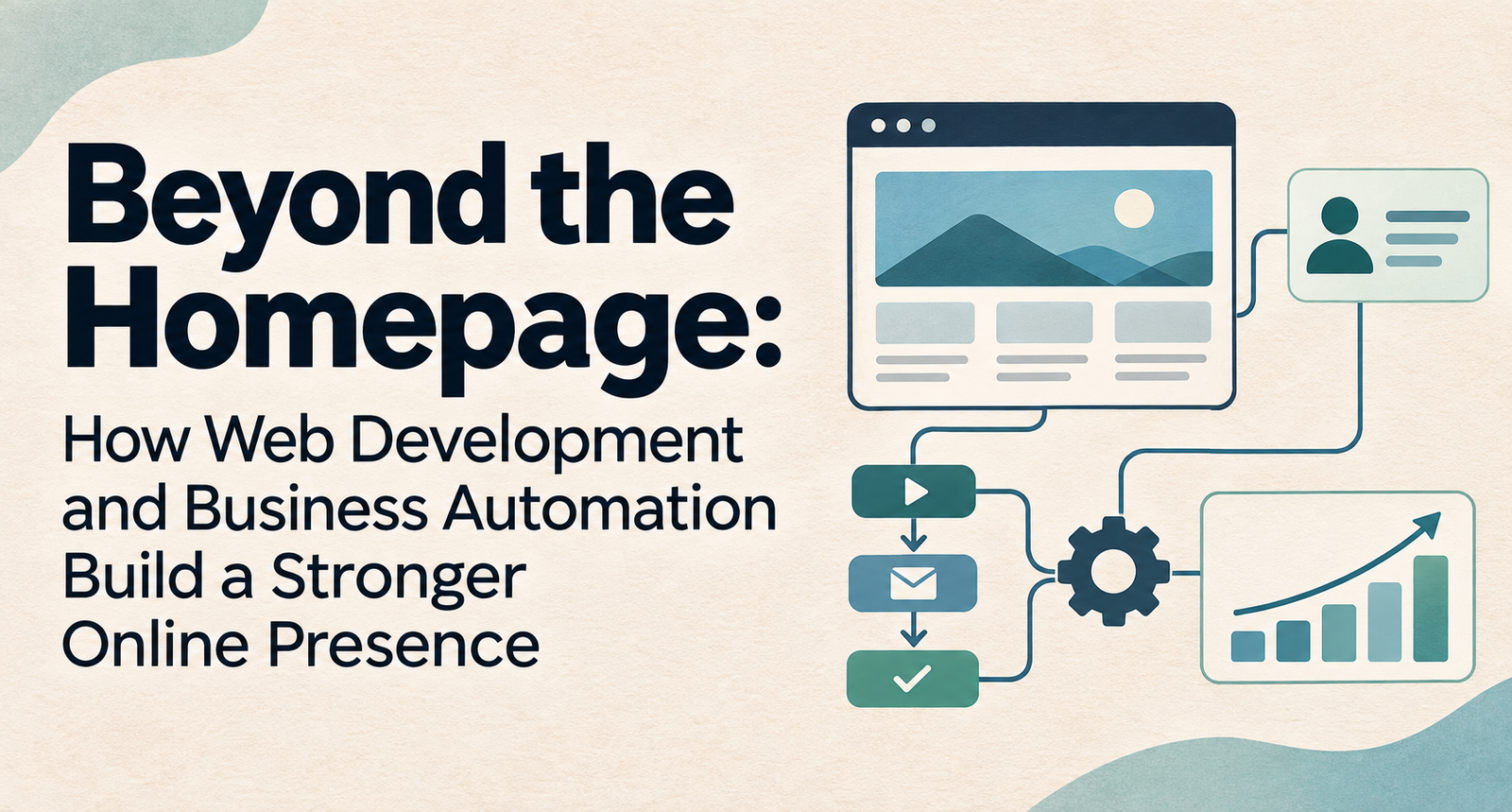
Most businesses judge their online presence by what they can see: the homepage design, the logo, the follower count. Customers judge it by what happens next. Does the page load on their phone in a busy parking lot? Can they find a price, book a slot, or get an answer at 9 p.m. on a Sunday? Or does their inquiry sit in an inbox until Tuesday?
That gap between first impression and follow-through is where many small and mid-sized businesses quietly lose customers. A strong online presence is really two things working together: a well-built website that earns attention and trust, and automated processes behind it that keep the promises the website makes.
This is why more owners are moving away from treating their site as a one-time design project. Working with a website development and digital marketing agency that looks at search visibility, site performance and lead handling as one connected job usually beats hiring separate vendors who never talk to each other.
The same thinking is spreading into industry-specific operations. A driving school, for example, can pair a fast, locally optimized website with driving school management software shaped around its own scheduling, instructor and student workflows. A parent who finds the school on Google can then book a lesson in minutes instead of waiting for a callback.
Below, we look at what each side contributes, where businesses commonly stumble, and a practical way to bring the two together.
Online Presence Is Now a Chain, Not a Page
A decade ago, being online mostly meant having a website. Today, a customer might first meet your business in a Google Maps listing, a review site, a social post, or an answer written by an AI assistant. Each of those touchpoints pulls information from somewhere, and much of it traces back to your website and the systems connected to it.
That makes your presence less like a storefront and more like a chain. Its links include:
- Discoverability: showing up in search results, map packs and AI-generated answers.
- Credibility: consistent business details, genuine reviews and clear service information.
- Responsiveness: how quickly someone gets a reply, a quote or a confirmation.
- Follow-through: reminders, updates and communication after the sale.
Good web development strengthens the first two links. Automation strengthens the last two. A weak link anywhere breaks the whole experience.
What Web Development Actually Contributes
Web development is often confused with web design. Design decides how a site looks. Development decides how it works, and that is what search engines, AI tools and impatient visitors notice first.
A few foundations matter more than any visual flourish.
Speed and mobile performance. Most local searches happen on phones. If a page drags, many visitors leave before they see your offer. Clean code, compressed images and reliable hosting do more for conversions than a clever animation.
Clear structure. Search engines and AI assistants reward sites that are easy to read. That means one clear topic per page, logical headings, descriptive page titles, and structured data, the behind-the-scenes labels that tell Google your hours, location and services.
Trust signals. Secure connections, working privacy policies, visible contact details and real customer stories reassure both people and algorithms that your business is legitimate.
Room to connect. This is the one owners overlook. A site built with forms, booking tools and integrations in mind can pass information straight into your other systems. A site that only displays brochure text becomes a dead end the moment a visitor wants to act.
The Moment After the Click
Plenty of businesses spend heavily to win a visitor’s attention, then hand that visitor to a manual process. A contact form lands in a shared inbox. Someone eventually copies the details into a spreadsheet, calls back, plays phone tag, and finally confirms by text.
Every step in that routine is a chance for the customer to go elsewhere. Business automation closes those gaps by letting routine work happen on its own:
- Inquiries get an instant, useful acknowledgment instead of silence.
- Bookings and payments happen in one sitting.
- Reminders go out without anyone having to remember them.
- Customer details flow into one record instead of five scattered files.
Automation is not about replacing people. It clears away the repetitive tasks that keep your team from the conversations that genuinely need a human, like a hesitant first-time buyer or an unhappy customer.
One Customer Journey, Two Systems Working Together
Picture a homeowner whose air conditioner fails on a hot July afternoon. Here is how a connected setup handles the next twenty minutes and beyond:
- They search for AC repair nearby and find a local HVAC company whose fast, mobile-friendly service page ranks well and answers common questions upfront.
- They tap “Book a visit,” choose a time slot pulled live from the technician calendar, and pay a small diagnostic fee.
- A confirmation arrives by text and email with the technician’s name and arrival window.
- On the morning of the visit, a reminder goes out. After the job, a short message asks for a review.
- That review appears on the company’s profile, strengthening its visibility for the next homeowner who searches.
Notice the loop. The website wins the visit, automation delivers the experience, and the experience feeds back into visibility. Neither half works nearly as well alone.
Where Businesses Commonly Get Stuck
If the combination works so well, why don’t more businesses have it? A few patterns come up again and again.
Tool sprawl. A booking app here, an email platform there, a payment processor somewhere else. Each solves a small problem, but together they create data islands and double entry. Map your customer journey first, then choose tools that connect, rather than adding apps one emergency at a time.
Off-the-shelf mismatch. Generic software often forces a business to bend its process around the tool. That is fine for standard tasks but frustrating for teams with unique workflows. In those cases, custom-built or highly configurable solutions usually pay off over time.
Automating a broken process. Software speeds up whatever you give it, including bad habits. Fix the workflow before you automate it.
Losing the human tone. Robotic messages feel cold. Write automated emails and texts the way your best employee would say them out loud.
This is where an experienced technology partner earns its keep. NewAgeSysIT, for example, builds custom software, mobile apps and AI-driven solutions for businesses, which gives it a practical view of how a public-facing website and internal operations should share data instead of living in separate worlds. The real value of a partner like that is seeing the full chain, not selling a single tool.
A Practical 90-Day Plan
You don’t need a full rebuild to get started. A phased approach keeps costs manageable and shows results early.
Days 1 to 30: Audit. Test your site on a phone, check page speed, and confirm your business name, address and phone number match everywhere online. Then list every manual step between a new inquiry and a completed sale.
Days 31 to 60: Fix the foundation. Tackle the biggest technical issues, sharpen your key service pages, and add a booking or quote form that feeds a calendar or CRM instead of an inbox.
Days 61 to 90: Automate the obvious. Set up instant inquiry replies, appointment reminders and review requests. Track response time and booking rate before and after, so you can see what actually changed.
Once these basics run smoothly, move on to deeper integrations such as online payments, customer portals or reporting dashboards.
Trends Shaping the Next Few Years
AI search is changing discovery. More people now ask AI assistants for recommendations. These tools favor businesses with clear, well-structured and consistent information, which makes solid development work more important than ever.
Customers expect self-service. Booking, rescheduling and paying without a phone call is fast becoming the norm rather than a perk.
Owned systems are gaining ground. Some businesses are rethinking stacks of monthly subscriptions and investing in platforms tailored to their workflow that they control for the long term.
Privacy expectations are rising. Collecting data responsibly, with clear policies and secure handling, is now part of earning trust online.
The Bottom Line
Your online presence is the sum of every interaction a customer has with you, not just the page they land on. Web development makes you easy to find and easy to trust. Automation makes you easy to do business with.
Start with the weakest link in your own chain, fix it, measure the difference, and build from there. The businesses that win online are rarely the flashiest. They are the ones that respond fastest and follow through every single time.



An AI PDF summarizer with flashcards and practice tests still has upload limits, so check them first. Adobe Acrobat’s flashcard maker accepts files up to 100MB and 600 pages, builds flashcards from key terms, definitions, and formulas, and links to quizzes, with no sign-up or credit card required to start.
Students who need to summarize long readings and turn them into study aids often hit a limit before they hit a result. Some limits count pages, some count megabytes, and some count words or sources. Knowing which one applies saves a failed upload and a lost evening. The sections below compare what several tools publish, using each tool’s own pages where possible, and explain how to plan around them. Limits change, so confirm them before you rely on one. Prices and caps change often, so check the tool’s own page.
File Upload Size Limit for a PDF: What Do Tools Allow?
It varies, and the unit differs. Adobe Acrobat’s flashcard maker accepts files that are 100MB or smaller and 600 pages or fewer, tells users to upload a smaller PDF when a file is too large, and limits prompts to 1,000 characters. Its page also lists errors for empty files and unsupported formats, so check that the file opens normally first. Its Student Spaces page also includes an AI Assistant for chatting through course material. Gemini Notebook, formerly NotebookLM, allows each source up to 500,000 words or 200MB for uploaded files, with up to 50 sources on the free plan, and Google’s help page says it offers two modes for summarizing sources. Quizlet says you can paste up to 100,000 characters in one session. The table compares the published limits. Split a very long PDF by chapter before uploading, and keep a copy of the original. If you only need a short section, copy the key pages into a new file so the AI has less to read and you stay far below any cap.
| Tool | Published limit | Count | Outputs |
| Adobe Acrobat flashcard maker | 100MB and 600 pages per file; prompts up to 1,000 characters | Per file | Flashcards; links to quizzes, study guides, mind maps, AI Assistant |
| Gemini Notebook | 500,000 words or 200MB per source; 50 sources on the free plan | Per source | Summaries, flashcards, quizzes, study guides |
| Quizlet | 100,000 characters of pasted text per session | Per session | Study guides, flashcards, quizzes |
Source Limit: How Do 200 MB and 500,000 Words Work Together?
Gemini Notebook’s help page lists both numbers for each source: up to 500,000 words or up to 200MB for uploaded files, so whichever you reach first is the real limit. A scanned PDF full of images tends to reach the megabyte cap first, while a text-heavy file reaches the word cap first. Free users can include up to 50 sources, and inactive sources still count toward the limit, so remove ones you no longer need. The help page also says PDFs added through URLs are treated as PDF sources. For planning, assume a page holds about 500 words, which makes 500,000 words roughly a thousand pages, an estimate that varies with formatting. Check the word count in a document editor if you are unsure. Most course readings fit easily, but a full textbook with figures may not. Ask for a summary of one section first, then check how well it matches before you commit a whole book.
Frequently Asked Questions
How should I summarize a very long PDF?
Work in stages. Summarize one chapter at a time, check each summary against the page it came from, and then combine the chapter summaries into a study guide or flashcard set. Tools that offer more than one summary mode, such as Gemini Notebook, let you pick a shorter or longer version. Keep your own notes for anything the summary misses. Save each chapter summary in one document so you can review them in order. Rewrite any sentence you do not understand.
Can I make flashcards and practice tests from the same PDF?
Often. Adobe Acrobat’s page links to quizzes, study guides, and mind maps built from your materials, Gemini Notebook generates flashcards and quizzes from uploaded sources, and Quizlet says one upload can produce a study guide, flashcards, and quizzes. Use the flashcards to learn terms and the practice tests after a gap to check recall. Keep one set per chapter so tests stay focused. Mix question types if the tool offers them. Retry missed items on a later day.
What if my PDF is over the limit?
Reduce it. Split the file by chapter, remove blank pages and long reference lists, and upload the sections you need. If a file is large because of images, export a text-focused version when your course allows it. Adobe Acrobat’s page suggests uploading a smaller PDF, and Google’s limits count both words and megabytes. Tell the tool which pages matter so it does not spend effort on appendices. Check the result against the page before you study from it.


A customer opens chat at 8:40 on a Tuesday. Her new espresso machine arrived with a cracked water tank. For twelve minutes she works through it with your AI agent: three photos, order number, delivery date, a crushed box. The AI checks the carrier record, confirms eligibility, and offers a replacement or a refund. She picks the replacement, but the item is backordered, so the AI escalates.
A human agent joins, and the first message the customer sees is: “Hi, thanks for reaching out! How can I help you today?”
She types the whole story again. Meanwhile, the AI’s refund offer is still pending somewhere, and by evening she has been issued both a refund and a replacement order. Two weeks later, the AI makes the same backordered-item mistake on a similar case, because nobody told it how the first one ended.
If you run AI agents in front of human teams, some version of this story is probably in your QA queue right now. It is not a model quality problem. It is a state ownership problem, and it is fixed with engineering discipline rather than better prompts.
Why handoffs lose context
Most handoffs connect two separate systems at a single point. The AI runs in its own runtime with its own conversation memory. The human works in a helpdesk with its own ticket record. The handoff is a call that creates a ticket, usually with a summary field. That design fails in predictable ways.
The summary is the only thing that crosses the boundary. What the customer said, what the AI checked, and what it offered all get compressed into a paragraph that drops the details that matter most: the exact offer, the exact promise made.
Nobody owns the case. After escalation, the AI’s session is often still alive, with a pending action or a refund call in flight. The human acts too. Two actors with write access to the same outcome and no lock between them is how you get double refunds.
The outcome never flows back. The human resolves the case in the helpdesk, and the AI’s evaluation data and policy logic never see the result.
Sessions outlive processes. Real cases span days and channels: chat, then email, then a callback. If conversation state lives in process memory or a short-lived cache, a deploy or crash wipes it out, and the customer starts over on Thursday.
Why common workarounds fall short
Better summaries. A more thorough handoff note helps a little, but it is still lossy, written after the fact, and cannot tell the human that a refund call is in progress.
Dumping the full transcript into the ticket. Now the human has everything and reads none of it. Worse, a transcript records what was said, not what was done. “I’ve started your refund” does not tell you whether the refund API succeeded.
Shared database flags. Someone adds an escalated boolean that the AI checks before acting. This works until two actions race or a retry fires after the flag flips. It is a lock without a lock’s guarantees.
Helpdesk webhooks for outcomes. Without a durable session waiting to receive them, resolution events land in a log nothing reads.
None of these answers the real question: what is the single, durable record of this case, and who may change it right now?
The general approach: the case is a durable workflow
The fix is to treat each support case as one long-lived, durable session that owns its state. Several principles follow.
1. One case, one workflow instance. Start a workflow keyed by case ID at first contact. It lives until the case closes, across chat, email, and voice. Channels are inputs, not owners of state.
2. Every AI step is a recorded activity. Lookups, eligibility checks, and offers run as discrete steps whose inputs and outputs are persisted. The case record becomes a structured log of what actually happened, including whether each action succeeded.
3. Handoff is an explicit step, not a side effect. Escalation is a named transition that packages the recorded context into a structured payload. The human sees “Replacement accepted, blocked: backordered, no refund issued” at the top, with the full trail one click away.
4. Explicit ownership. Exactly one actor owns the case at a time, and ownership is part of the workflow state. Pending AI actions are completed or cancelled, and the AI’s ability to act is revoked, before the human is assigned.
5. Human actions are external events. When the agent issues a refund or closes the case in the helpdesk, that action is sent back into the same workflow as an event, recorded alongside the AI’s steps.
6. Timers for SLAs and follow-ups. Durable timers handle “page the lead if nobody picks this up in 15 minutes” and “check in after 3 days.” They survive restarts and cancel cleanly when the case moves on.
7. Outcomes close the loop. The final state (what was offered, what the human did, and why) is emitted as a structured record that feeds evaluation sets and policy rules.
The session, not the model or the helpdesk, becomes the system of record.
How to implement it
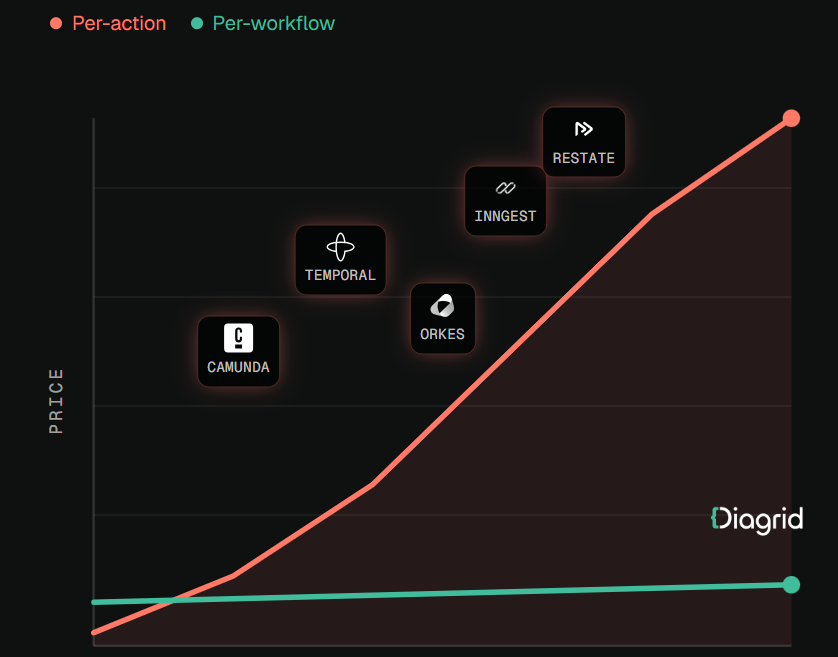
Any durable workflow engine can do this. One open-source option is Dapr Workflow, part of the CNCF-graduated Dapr project. It keeps an event-sourced history in a state store, replays it after a crash, and does not re-execute completed activities. If the process dies right after a refund activity succeeds, recovery does not issue a second refund.
It also supports retry policies, durable timers, and external events for human input. The escalation step can wait for a human action or an SLA deadline, whichever comes first:
evt = ctx.wait_for_external_event(“approval”)
timer = ctx.create_timer(timedelta(hours=48))
winner = yield wf.when_any([evt, timer]) # if winner == timer: …
If the timer wins, the workflow escalates further. If the human’s event wins, it records the decision and moves on. Orchestrator code must stay deterministic, so every call to an order, carrier, or payment system goes in an activity.
For ownership, Dapr offers actors with turn-based concurrency and a distributed lock building block. A per-case actor or lock keeps the AI and a human from acting on the same case at once. ETags give optimistic concurrency for case data outside the workflow history.
If your agent already runs on the OpenAI Agents SDK, LangGraph, or the Claude Agent SDK, you need not rewrite it. Some platforms wrap existing agents so each LLM call and tool call becomes a durable activity. Diagrid is one example: its Catalyst platform provides durable execution for agents built on those frameworks and lists first-class session lifecycle management and human-in-the-loop escalations among its features. As with any vendor, test those claims against your own escalation flows before committing.
Whatever you choose, look for three properties: sessions survive crashes and deploys, completed steps are not re-run, and human events land in the same record as AI actions. Teams evaluating a durable workflow platform for AI agents should ask specifically how it handles a case that pauses for days waiting on a human.
A practical rollout checklist
- ☐ Start with one high-cost escalation type, such as damaged deliveries.
- ☐ Define case state explicitly: facts, checks, offers, current owner, pending actions.
- ☐ Move every AI tool call for that case type into recorded activities.
- ☐ Make the handoff payload a structured schema shown at the top of the ticket.
- ☐ Enforce ownership: no AI customer-affecting actions once a human owns the case.
- ☐ Route human actions back into the workflow as external events.
- ☐ Add durable timers for pickup SLA, customer follow-up, and auto-close.
- ☐ Kill the process mid-case in testing and confirm no duplicated actions.
- ☐ Feed structured resolution records into AI evaluation.
- ☐ Track “customer repeated themselves” and “duplicate compensation” as quality metrics.
Conclusion
The customer with the cracked espresso machine did not care which system held her case. She cared that the person who picked it up knew her story, and that she got one fix rather than two. Getting there is less about smarter models than about making each case a durable, owned session with a single history. Then handoffs carry full context, one actor acts at a time, and every resolution becomes something your AI can learn from.


Open-office calls can sound calm through your headphones while coworkers hear every keyboard tap, HVAC hum, and nearby conversation. The mismatch can interrupt meetings, force repeated explanations, and make a reliable headset seem faulty even when the problem comes from a different part of the audio path.
Office headphones pick up background noise because active noise cancellation and outgoing microphone processing handle different audio paths. Understanding that distinction helps you identify where unwanted sound enters a call and choose the right fix for your workspace.
Filename: soundcore-space-2-pro-office-call.png
Alt: Man wearing soundcore Space 2 Pro headphones on a call in an open office
ANC Is Not Microphone Noise Reduction
Active noise cancellation and microphone noise reduction do different jobs. ANC reduces some of the environmental sound you hear, but it does not automatically remove that noise from the microphone signal other people hear.
Outgoing call quality depends on the headset microphones, voice-processing system, and any noise suppression applied by your meeting app. If coworkers can hear your keyboard or nearby conversations even though the room sounds quiet to you, check the microphone path rather than ANC.
Keep this distinction in mind when comparing noise cancelling headphones with microphone: listening comfort and outgoing voice clarity are related, but they are not the same capability.
Where the Noise Enters the Call
Background noise enters a call when the active microphone picks up room sound along with your voice. How difficult that noise is to reduce depends on its type, distance, direction, and the acoustics of the room.
Steady sounds such as air conditioning and computer fans are different from brief noises like keyboard taps or closing drawers. Nearby conversations can be especially difficult to suppress because they contain speech that may compete with your own voice.
Distance and room acoustics matter too. Moving farther from a noise source can reduce how much sound reaches the microphone, while hard surfaces may reflect more sound around the room. Identifying whether the main problem is mechanical noise, desk noise, or nearby speech makes troubleshooting much easier.
A Quick Troubleshooting Checklist
The fastest way to isolate background noise is to test one part of the input path at a time. Use a short recording or test call in the place where you normally work, and speak at your usual meeting volume.
- Confirm the selected input. Open the audio settings in both the operating system and the meeting app. Select the headset microphone by name. If the laptop microphone remains active, it will sit close to the keyboard and capture more of the room.
- Check the headset position. Wear the earcups in the intended orientation and make sure the fit is stable. If the headset has an adjustable boom, place it near the corner of the mouth rather than directly in front of it.
- Test meeting-app suppression. Record the same sentence with the available suppression settings and compare the results. Microsoft explains the current controls and use cases for Teams noise suppression. Other platforms may label or manage similar settings differently.
- Run an open-mic and mute test. Speak, type briefly, then mute the microphone. If all room sound stops when muted, the unwanted audio is entering through the selected input rather than shared computer audio. Check screen-sharing sound settings separately if audio continues.
- Change one environmental factor. Move the keyboard farther away, turn from the nearest conversation, or step away from direct airflow. Repeat the same recording. A noticeable change shows that placement or room noise is contributing to the problem.
- Update and reconnect. Install current headphone firmware and meeting-app updates. Update Bluetooth or audio drivers when applicable, then reconnect the headset if the wrong microphone remains selected or playback quality does not recover after you close apps using call audio.
When a Boom Mic or Certified Headset Makes More Sense
A boom microphone or certified communications headset makes more sense when the microphone must stay close to the mouth, the workspace is consistently loud, or an organization requires specific call controls and device management.
Placing a microphone near the mouth can improve the voice-to-room-noise relationship before software processing begins. That can be useful for contact centers, support desks, or employees who spend most of the day speaking from one workstation. A certified model may also support controls or deployment requirements tied to a particular communications platform.
General office headphones fit a different workflow. They may be better suited to people who alternate between meetings, focused listening, music, and mobile calls. Bluetooth compatibility alone does not confirm platform certification, so buyers with a formal workplace requirement should verify the exact model with their employer or platform provider.
How Space 2 Pro Helps Keep Office Calls Clear
Built for open offices, shared homes, and hybrid work, Anker soundcore Space 2 Pro pairs the ANKER Thus™ AI Chip with a six-microphone array for real-time voice separation to help keep your voice clear amid keyboard taps, nearby conversations, and everyday office noise. Adaptive ANC 3.0 uses an eight-sensor system to adjust to the mixed sounds of your workspace, helping you settle back into focused work between meetings.
Multipoint keeps your laptop and phone connected at the same time, making it easier to move from an online meeting to a mobile call without repeatedly pairing your headphones. With up to 30 hours of audio playback with ANC on or 60 hours with ANC off, Space 2 Pro also covers listening between meetings and music on the commute home. When you need a quick top-up, a 5-minute charge provides approximately 8 hours of playback.

Conclusion
When coworkers hear the whole office, start with he outgoing audio path rather than the ANC setting. Confirm the selected microphone, make a controlled recording, test software suppression, and reduce the nearest noise source. If those checks reveal a limitation in your current headset, compare microphone performance and ANC as separate features. soundcore Space 2 Pro combines strong call-focused processing with ANC in a design suited to office and hybrid work.
FAQs
Why can people hear my office on calls even when I have ANC turned on?
ANC mainly reduces the environmental sound reaching your ears. Other participants hear the signal captured by the selected microphone and processed by the headset and meeting app. Those functions operate on different parts of the call.
Does ANC remove background noise from my microphone?
Not automatically. Check the headset’s outgoing call-processing features and the meeting app’s noise-suppression setting separately. Test them with the same voice sample in your normal workspace.
How can I stop keyboard noise from reaching a video call?
Confirm that the app is using the headset microphone instead of the laptop microphone. Then compare keyboard distance, microphone position, and the app’s suppression settings. A quieter keyboard may help, but input selection should be checked first.
Do headphones with more microphones always sound clearer on calls?
No. Microphone count matters only as part of a complete system that includes placement, signal processing, fit, software, connection quality, and room acoustics.
Is soundcore Space 2 Pro a reasonable option for open-office calls?
Yes. Space 2 Pro is designed for clear calls and focus in work environments. Its ANKER Thus™ AI Chip and six-microphone array for real-time voice separation handle outgoing call audio, while an eight-sensor Adaptive ANC 3.0 system helps reduce mixed office noise for the wearer. Performance still varies by environment and setup.

Beyond the Homepage: How Web Development and Business Automation Build a Stronger Online Presence

What to Look for in an Inflatable Obstacle Course for Schools

Common Mistakes When Arranging Medicaid-Funded Home Care in Philadelphia

A Better Weekend Viewing Plan Starts Before You Pick Up the Remote

How to Choose a Divan Bed for a Stylish, Clutter-Free Bedroom

London in November: Where to Go When the City Feels Like It’s Waking Up

How to Ensure Your Home is Valued Correctly for a Quick Sale

Christopher Dare: The Untold Story of Engineer and Former Husband of Angela Rippon

The 15 Highest-Paid Rugby Players in the World

What Is Fanquer? The Digital Creator Platform Transforming Direct-to-Fan Engagement

Dr Jared Ross: Missouri Appeals Court Upholds Protection Order Over Graphic Torture and Murder Threats

Nancy Hallam: The Inspiring Life, Career, and Success Story Behind Ian Wright’s Wife
How to Ensure Your Home is Valued Correctly for a Quick Sale
Christopher Dare: The Untold Story of Engineer and Former Husband of Angela Rippon
The 15 Highest-Paid Rugby Players in the World
What Is Fanquer? The Digital Creator Platform Transforming Direct-to-Fan Engagement
Dr Jared Ross: Missouri Appeals Court Upholds Protection Order Over Graphic Torture and Murder Threats
Nancy Hallam: The Inspiring Life, Career, and Success Story Behind Ian Wright’s Wife
-
 Real Estate9 months ago
How to Ensure Your Home is Valued Correctly for a Quick Sale
-
Celebrity12 months ago
Christopher Dare: The Untold Story of Engineer and Former Husband of Angela Rippon
-
 Sports6 months ago
The 15 Highest-Paid Rugby Players in the World
-
 Technology5 months ago
What Is Fanquer? The Digital Creator Platform Transforming Direct-to-Fan Engagement
-
 Celebrity5 months ago
Dr Jared Ross: Missouri Appeals Court Upholds Protection Order Over Graphic Torture and Murder Threats
-
Celebrity1 year ago
Nancy Hallam: The Inspiring Life, Career, and Success Story Behind Ian Wright’s Wife
-

 Celebrity8 months ago
Who Is Azriel Crews? Inside the Life and Career of Terry Crews’ Daughter
-
 Celebrity12 months ago
Who Is Maisie Mae Roffey? The Private Life, Family Story, and Quiet Success of Julie Walters’ Daughter