
Ai & Tools
Top Free AI Detection Tools in 2026 (Honest Breakdown)


AI writing tools have gotten uncomfortably good. GPT-5.5, Gemini 3.1 Pro, Claude Opus 4.7, DeepSeek V4 Pro — these models produce content that reads naturally, structures arguments coherently, and passes a casual read without triggering suspicion. That’s a real problem for teachers grading essays, editors screening submissions, and businesses verifying original work.
AI detectors exist to solve that. But not all of them have kept pace with the models generating text in 2026. Some still flag based on GPT-3 era patterns. Some produce false positives on strong human writing. Some cap you at 400 words and call it a day.
Seven tools were tested against the same four texts — two AI-generated (GPT-5.5 and Gemini 3.1 Pro), two written by humans — to find which ones hold up in the current landscape.
What Makes an AI Detector Worth Using in 2026
The bar for a reliable AI detector has shifted. A tool trained on GPT-3 outputs and retrained infrequently will consistently miss content from Gemini 3.1 Pro or Claude Opus 4.7. The models writing content today are more linguistically varied, contextually coherent, and structurally diverse than anything from two years ago.
The criteria used to rank each tool: detection accuracy across multiple AI models, false positive rate on genuine human writing, language coverage, input limits, whether an account is required, and what the tool actually gives you beyond a binary verdict.
1. CudekAI AI Detector
Tested accuracy: Correctly flagged both AI texts. Correctly cleared both human texts.
CudekAI’s detection covers the widest model range of any tool tested — GPT-5.5, GPT-4.1, Gemini 3.1, Claude Opus 4.7, DeepSeek V4 Pro, Llama, and Grok. It runs four layers of analysis simultaneously: word-level, sentence-level, paragraph-level, and document-level. That last one matters more than it sounds. Most detectors score a single pass over your text. CudekAI evaluates how AI and human sections interact across a full document — which is where mixed-origin content hides.
The input limit sits at 15,000 characters with file upload support for DOCX, PDF, TXT, and RTF. No account is required for basic detection. The output goes beyond a percentage score — CudekAI highlights specific sentences driving the AI determination so you can review the reasoning, not just the verdict.
Language support spans 103 languages. For context: most competitors support English and a handful of European languages. CudekAI handles Arabic, Japanese, Urdu, Hindi, Korean, Turkish, and 97 others with the same detection logic.
Beyond text, CudekAI includes an AI image detector — the only tool in this list that does. For anyone working in content verification across multiple formats, that removes the need to run a separate tool entirely.
The platform also bundles a plagiarism checker, grammar checker, humanizer, paraphraser, and essay checker under one login. For teams that need bulk processing, a documented API handles batch detection with JSON responses. That combination — accuracy, breadth, format coverage, and workflow integration — is what separates CudekAI from the rest of the field.
Best for: Academic institutions, content teams, publishers, recruiters, anyone working at scale or across languages.
2. Copyleaks AI Content Detector
Tested accuracy: Correctly flagged both AI texts. Correctly cleared both human texts.
Copyleaks performed cleanly on all four test texts — a genuine result that earns it second place. Sentence-level flagging shows which specific passages drove the AI determination, which is more useful than a single document-wide score.
The catch is access. Multi-language support, higher scan frequency, and deeper analysis require a paid account. The free tier covers basic English detection with limited scans per month. Copyleaks also has no AI image detection, no humanizer, and doesn’t identify which specific AI model produced a piece of text — just that it was AI-generated.
For educators running occasional English-language checks, Copyleaks is a solid free option. For multilingual workflows or teams needing regular volume, the free tier runs out quickly.
Best for: Teachers and academics doing occasional English-language verification.
3. ZeroGPT
Tested accuracy: Flagged ChatGPT text at 94.68% AI. Flagged Gemini text at 86.54% AI. Cleared both human texts.
ZeroGPT works well within its scope. It highlights the specific sentences it considers AI-generated directly in the result view, which is a practical feature when reviewing longer documents. No account is required, and results are fast.
The limitation is scope itself. ZeroGPT operates primarily in English, supports no file uploads, exports no reports, and cannot identify which AI model produced the text. The 86.54% confidence on Gemini 3.1 Pro content — rather than a clearer determination — suggests its training data hasn’t fully caught up with the latest generation of models. For someone who needs a quick free check on a short English text, ZeroGPT is fine. For anything more structured, it runs short.
Best for: Quick single-document checks on English-language text.
4. GPTZero
Tested accuracy: Correctly flagged ChatGPT text. Returned ambiguous result on Gemini content.
GPTZero is genuinely well-designed. The interface is clean, the “perplexity” and “burstiness” framework is explained in accessible terms, and the writing feedback features are useful for educators working with student submissions. It has legitimate institutional adoption — Canvas and Google Classroom integrations exist.
The accuracy gap is real, though. GPTZero returned “may include parts written by AI” for Gemini 3.1 Pro-generated content rather than a clear AI determination. That hedge is less useful when you need a reliable answer. GPTZero’s detection core was built around earlier GPT models; content from Gemini, Claude Opus 4.7, DeepSeek V4, or Grok doesn’t always trigger clear results. Free usage also requires account creation and expires after a limited number of scans.
Best for: English-language academic settings where ChatGPT is the primary concern.
5. Winston AI
Tested accuracy: Flagged both AI texts correctly. Returned accurate results on both human texts.
Winston AI’s detection is accurate in testing. It correctly scored both AI-generated texts at 0% human probability and identified the human-authored texts accurately. The interface is clean, and printable PDF reports are available on paid plans — a practical feature for academic integrity documentation.
The friction point is the free tier: account creation is mandatory before any scan runs, and the free monthly allowance sits at 2,000 words. That’s roughly four or five typical essays. For anything beyond that — a content team, a teacher reviewing thirty submissions, a publisher screening manuscripts — the paid tier starts at $12/month for 80,000 words. Winston AI also lacks AI image detection, multilingual support, and API access at any free tier level.
Best for: Individual educators or freelancers who need occasional accurate checks with printable output.
6. Originality AI
Tested accuracy: Flagged both AI texts correctly. Flagged one human text with a questionable score.
Originality AI correctly detected both AI-generated texts at 100% confidence. It also correctly identified one human-authored text as likely original. The problem showed up on the fourth test: content written by an experienced professional journalist was scored at only 58% likely original — a false positive significant enough to matter in practice.
That’s not a minor calibration issue. A seasoned writer with a distinctive, structured voice triggering a near-uncertain originality score means Originality AI’s model may be penalizing confident, structured human prose in a way that creates unreliable results for professional content verification.
Originality AI also bills by usage: 50 free credits at signup, then $0.01 per 100 words. No AI image detection. No multilingual support at the free tier. No humanizer.
Best for: Bloggers and content managers checking AI-generated drafts, not professional editorial verification.
7. Hugging Face GPT-2 Output Detector
Tested accuracy: Failed on current AI text. Inconsistent across browsers. 510-word input cap.
Hugging Face’s free detector is built on GPT-2 era architecture. That was two model generations ago for OpenAI alone — before GPT-4, GPT-4o, GPT-5, and GPT-5.5. It simply was not trained to recognize linguistic patterns produced by Gemini 3.1 Pro, Claude Opus 4.7, or DeepSeek V4 Pro.
In testing, the tool stalled on initial attempts across multiple browsers. When it did process text, it missed current ChatGPT-generated content entirely. The 510-word input limit makes it impractical for anything longer than a short paragraph. Hugging Face’s detector is more useful as a demonstration of how AI detection works than as a production tool.
Best for: Understanding the technical foundations of AI detection. Not for professional use.
Side-by-Side Comparison
| Tool | 2026 Model Coverage | Languages | Input Limit | Account Required | Image Detection | False Positives |
| CudekAI | GPT-5.5, Gemini 3.1, Claude 4.7, DeepSeek V4, Llama, Grok | 103 | 15,000 chars | No (basic) | ✅ | None in testing |
| Copyleaks | GPT-4, Gemini (partial) | Multi (paid) | Varies | No (basic) | ❌ | None in testing |
| ZeroGPT | GPT-4, partial Gemini | English-primary | ~3,000 words | No | ❌ | None in testing |
| GPTZero | GPT-focused | English | Varies | Yes | ❌ | Partial miss on Gemini |
| Winston AI | GPT-4, Claude (partial) | English | 2,000/mo free | Yes | ❌ | None in testing |
| Originality AI | GPT-4, Claude (partial) | English | 50 free credits | Yes | ❌ | 1 false positive |
| Hugging Face | GPT-2 only | English | 510 words | No | ❌ | Missed current AI text |
The Models These Detectors Need to Handle in 2026
The AI writing tools producing content today include GPT-5.5 (rebuilt architecture, released April 2026), Gemini 3.1 Pro (scoring 94.3% on GPQA Diamond benchmarks), Claude Opus 4.7 (Anthropic’s current top model), DeepSeek V4 Pro (1.6 trillion parameters, open-weight), and Llama-based derivatives running locally on consumer hardware. The top frontier models in 2026 are closer in capability than ever before, which makes detection harder — a model that easily fooled detectors two years ago now has company from half a dozen equally capable alternatives.
Any AI detector not continuously retrained against the outputs of these specific models will have accuracy gaps. That’s the practical difference between tools like Hugging Face (frozen at GPT-2) and tools like CudekAI that explicitly list current model detection as an active feature.
Frequently Asked Questions About AI Detection
What AI models do current detectors struggle with most? Most AI detectors were trained primarily on GPT-3 and GPT-4 outputs. Content generated by Gemini 3.1 Pro, Claude Opus 4.7, and DeepSeek V4 Pro tends to produce the highest miss rates among older or infrequently updated detectors, because the linguistic fingerprints differ from GPT-focused training data.
Can an AI detector identify which specific model wrote the text? Most cannot. CudekAI identifies content by specific model — distinguishing between GPT-5.5, Gemini 3.1, Claude Opus 4.7, DeepSeek, Llama, and Grok. That’s useful when the origin matters, not just the AI/human determination.
Do AI detectors produce false positives on human writing? Yes, and it’s a real problem. Originality AI scored a professional journalist’s work at 58% likely AI in our testing. Confident, structured human prose — particularly from experienced writers — can trigger false positives on detectors trained predominantly on casual writing. CudekAI and Copyleaks returned no false positives across our four test texts.
What’s the difference between sentence-level and document-level detection? Sentence-level detection scores individual sentences for AI probability. Document-level detection evaluates how the full text holds together contextually — useful for catching mixed documents where AI-generated sections are embedded within human-written content. CudekAI runs both layers simultaneously.
Is a free AI detector good enough for professional use? For occasional checks on English-language text, free tools like ZeroGPT work. For multilingual content, file uploads, mixed-format verification (text and images), or high-volume workflows, free tiers on most tools run out fast or lack the model coverage needed. CudekAI’s free tier is the broadest tested here — no account needed, 15,000 character input, and 103 language support at no cost.
How do AI detectors handle content that’s been humanized or edited after generation? Single-layer detectors are more vulnerable to humanized content. Multi-layer analysis — covering word, sentence, paragraph, and document levels simultaneously — makes it harder to fully mask AI origin through light editing. No detector guarantees 100% accuracy on aggressively humanized text.
Final Assessment
The honest answer is that most AI detectors have not kept pace with AI writing tools. Hugging Face is frozen at GPT-2. GPTZero misses Gemini content. Originality AI flags professional human writing incorrectly. Winston AI’s free tier runs out at 2,000 words per month.
Among the seven tested, CudekAI and Copyleaks are the only tools that correctly handled all four test texts without false positives. CudekAI separates further on coverage: 103 languages, current model detection including GPT-5.5 and Gemini 3.1 Pro, image detection, file upload support up to 15,000 characters, and API access for bulk workflows — all from a single platform. For anyone verifying content with any regularity in 2026, that range of capability matters.
The other tools have specific use cases where they hold up. ZeroGPT for quick English checks. Copyleaks for basic academic screening. Winston AI when a printable report matters. But if the goal is one reliable tool that handles what’s actually being generated right now, CudekAI is the practical starting point.



Students often check their assignments before submission. A Turnitin Report can help you identify matching text and review possible similarities. However, a similarity percentage does not automatically determine whether your work contains plagiarism.
You need to understand what the report shows before making changes. A careful review can help you identify copied wording, missing citations, common phrases, and correctly referenced material.
So, how should you read your results?
What Is a Turnitin Report?
A Turnitin Report provides information about text similarities found during a document check. The system compares submitted content against sources available to it.
The report can highlight sections that resemble existing material. It may also show sources associated with particular matches.
You should review the highlighted sections instead of focusing only on the overall percentage. A similarity result needs context before you decide what action to take.
What Does the Similarity Score Mean?
The similarity score represents the amount of text that matches or resembles material identified by the system.
A higher percentage does not automatically mean plagiarism. A lower percentage does not automatically prove that every part of your work is original.
For example, properly quoted material can create a match. Common terminology can also appear in multiple documents.
Therefore, you should use the Turnitin Report as a review tool rather than treating the percentage as a final judgment.
Why Can Properly Cited Text Appear in the Report?
Academic writing often includes quotations and references. Those passages may match existing sources even when you have cited them correctly.
You should check the highlighted text and its surrounding citation. If you used a direct quotation, quotation marks and proper attribution should normally make the source clear.
Paraphrased content can also create similarities. You should make sure your paraphrasing uses your own wording and that you provide appropriate attribution.
A match does not always indicate improper copying.
How Should You Review Highlighted Matches?
You should examine each highlighted section individually. Start by checking the source connected to the match.
Next, compare the source wording with your own text. Ask yourself why the system identified the passage.
You may find a direct quotation, a common phrase, a properly cited source, or wording that needs revision.
You should then decide what action is appropriate. Some matches may require no change. Others may need better citation or more original phrasing.
Can a High Similarity Score Be Acceptable?
A high score can sometimes result from legitimate content. Assignments that require specific terminology, references, quotations, or templates may naturally contain matching text.
However, a high score can also indicate that your writing relies heavily on existing material.
You should therefore avoid judging your work based only on a number. The details inside the Turnitin Report matter more than the percentage alone.
Your institution may also have its own academic integrity requirements.
What Does a Low Similarity Score Mean?
A low score generally means that the system identified fewer matching passages. However, it does not automatically guarantee that your work is free from plagiarism.
A source may not be included in the system’s available comparison material. Your writing could also contain unattributed ideas without using identical wording.
You should still review your citations and references carefully.
A low similarity result should encourage careful checking rather than complete confidence.
How Can You Reduce Unnecessary Similarity?
You should focus on writing ideas in your own words. Start by understanding the source material before creating your explanation.
You can then paraphrase the information using your own sentence structure and vocabulary. You should still provide a citation when the idea comes from another source.
Direct quotations should remain clearly marked and properly attributed.
You should also avoid copying sentence structures too closely. Changing a few individual words may not create genuine paraphrasing.
Can References Affect Your Similarity Score?
Reference sections can sometimes contain text that appears in other academic documents. Titles, publication names, author names, and citation formats may also create matches.
You should review how your institution handles references when interpreting your score.
Some checking systems provide options that exclude certain types of content from specific views. However, you should not assume that every setting changes the official academic assessment.
Always follow the requirements provided by your instructor or institution.
Should You Worry About Every Highlight?
You do not need to change every highlighted phrase automatically. Some matches are unavoidable or completely legitimate.
You should first identify the type of match. Then, determine whether the wording requires action.
A common phrase may not need rewriting. A copied paragraph without proper attribution requires much more attention.
The Turnitin Report becomes more useful when you evaluate each match based on its context.
Can AI-Generated Content Affect Your Review?
AI-generated writing creates another issue for students and writers. Similarity checking and AI detection are different processes.
A similarity checker looks for matching or similar text. An AI detector attempts to identify patterns associated with AI-generated writing.
You should not assume that a similarity score tells you whether AI was used. The two checks address different questions.
If your institution has rules about AI-assisted writing, you should follow those rules separately.
What Should You Do Before Submission?
You should complete a final review before submitting your assignment.
First, check your citations. Next, review direct quotations and paraphrased material. Then, inspect any unusual similarities shown in the report.
You should also verify your references and make sure every borrowed idea has appropriate attribution.
Finally, read your work without focusing only on the score. Clear arguments, accurate information, and proper academic practices should remain your main priorities.
Final Thoughts:
A Turnitin Report can help you identify similarities in your writing, but the percentage alone does not tell the full story.
You should examine individual matches and understand why they were identified. Proper quotations, references, common phrases, and legitimate terminology can all affect the result.
You can use the report as part of a careful editing process. Review your sources, improve citations, paraphrase responsibly, and follow your institution’s academic integrity rules.
A thoughtful review will help you understand your similarity results instead of simply trying to achieve a particular percentage.
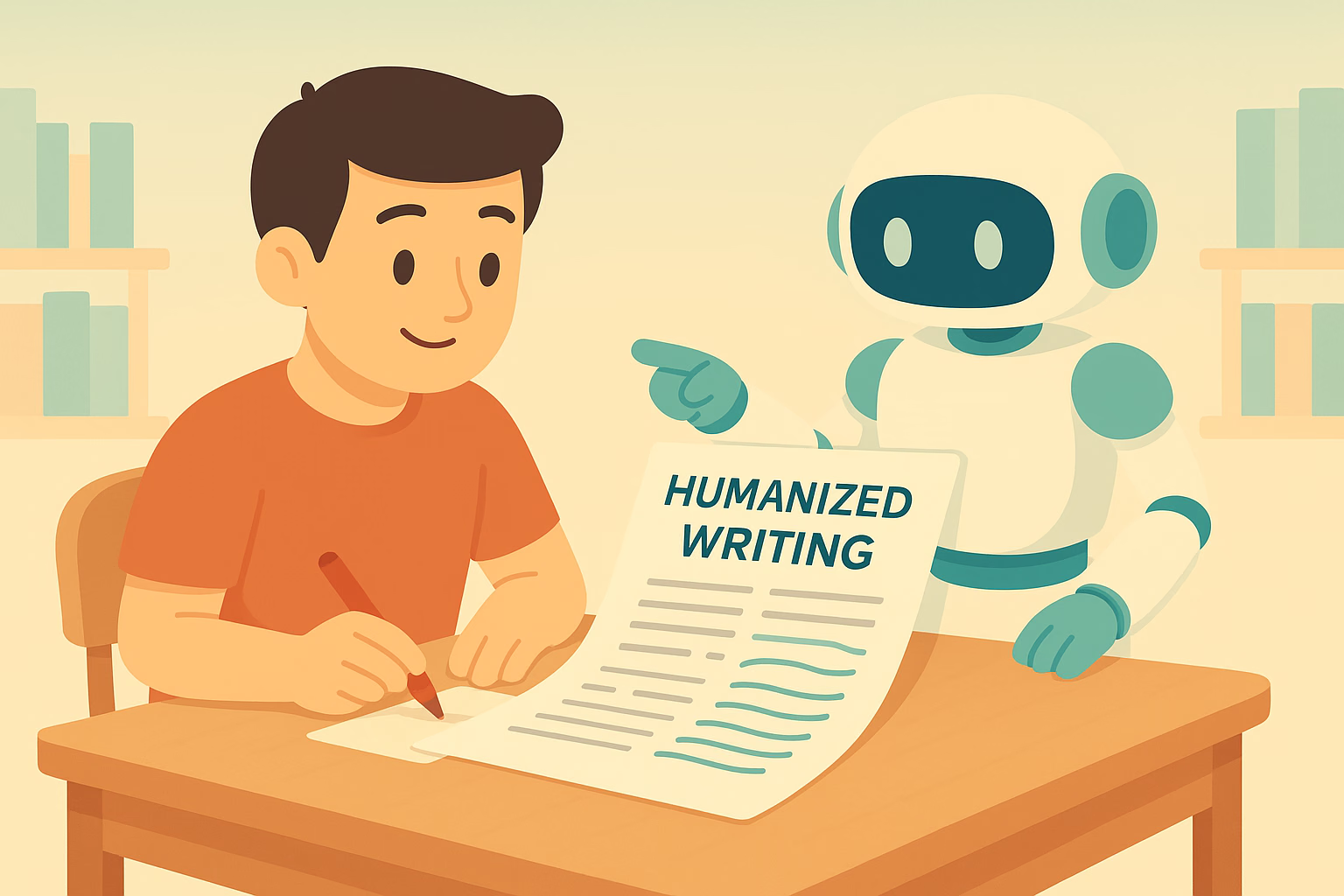
AI writing can make content creation faster. You can create drafts, outlines, emails, and articles within minutes. However, generated text can sometimes feel repetitive or too predictable.
Readers may notice similar sentence structures, generic expressions, or an overly formal tone. You can Humanize AI text to make it clearer, more natural, and better suited to your audience.
However, good humanization requires more than replacing a few words. You need to consider sentence flow, tone, vocabulary, context, and overall readability.
Why Does AI Text Sometimes Sound Unnatural?
AI systems generate text by recognizing language patterns. As a result, some outputs can follow similar structures.
You may see repeated transitions or sentences with nearly identical rhythms. The content may also explain simple ideas with unnecessary detail.
You can Humanize AI writing by identifying those patterns and changing them. You should focus on the way ideas connect rather than editing individual words alone.
A natural piece of content should feel clear and purposeful from beginning to end.
How Can You Humanize AI Text?
You can start with a careful review of the original content. Read the entire draft before making changes.
Next, identify sentences that sound repetitive or generic. You can rewrite them using simpler and more direct language.
You can also Humanize AI with an AI humanizer when you want automated assistance. Such a tool can help adjust sentence structures and wording.
However, you should review the output afterward. Automated rewriting may not understand every detail of your topic or audience.
Can Sentence Length Make Writing More Natural?
Sentence length can affect the rhythm of your content. A paragraph that contains only long sentences may feel difficult to read.
You can Humanize AI content by mixing short and longer sentences. Short sentences can emphasize important points. Longer sentences can provide context when necessary.
You should also avoid creating a fixed pattern. Natural writing usually has some variation in sentence length and structure.
Read your paragraphs aloud when possible. Hearing the text can help you identify awkward rhythm.
How Does Word Choice Affect the Result?
Word choice has a major effect on tone. AI-generated text can sometimes use formal vocabulary when simple words would communicate the same idea.
You can Humanize AI by replacing unnecessary complexity with clearer language. Your word choices should match the readers you want to reach.
A technical article may need specialized terminology. A beginner-focused article may need simpler explanations.
You should avoid changing important technical terms simply to make the writing sound different. Accuracy should always remain important.
Can You Make AI Writing More Personal?
Personal details can make content feel more authentic. You can add examples, observations, and explanations that reflect your own perspective.
You can Humanize AI text by adding relevant experiences or specific examples. Such details can make general information easier to understand.
However, you should avoid adding personal information that does not support the topic.
Your goal should be useful personalization. Every added detail should have a clear purpose.
How Can You Improve Paragraph Flow?
Good paragraphs usually focus on one main idea. AI-generated content can sometimes combine several points without a clear connection.
You can Humanize AI writing by reviewing each paragraph separately. Ask yourself what the main point is and whether every sentence supports it.
You can then remove unnecessary sentences or move information to a more suitable section.
Transitions should also feel natural. You do not need a transition phrase at the beginning of every paragraph.
Can a Humanizer Preserve the Original Meaning?
Meaning should remain a priority during any rewrite. A natural-sounding sentence is not useful if it changes the original message.
You should compare the rewritten version with your source content. Check facts, names, numbers, instructions, and important terminology.
You can Humanize AI text while keeping the central message intact. However, manual review remains necessary.
You should also verify factual claims before publishing. Better wording cannot correct inaccurate information.
How Should You Adapt the Tone?
Different content needs different tones. A professional email should sound different from a lifestyle article.
You can Humanize AI content by choosing a tone that matches the purpose of your writing.
You may need a direct style for business communication. You may prefer a conversational style for a blog.
The important point is consistency. The tone should remain appropriate throughout the entire piece.
Can Humanization Remove Repetitive Phrases?
Repetition can make generated content feel mechanical. You may notice the same word or phrase appearing several times in nearby sentences.
You can Humanize AI writing by combining repeated ideas or replacing unnecessary wording.
However, you should keep important terms when they help readers understand the subject. Removing every repeated keyword can also make content less clear.
Good editing removes unnecessary repetition without damaging meaning.
Should You Use AI Detection Tools?
Some writers check their content with AI detection tools after rewriting. These tools can provide additional information, but their results should not be treated as absolute proof.
AI detectors can make mistakes. Human-written content can sometimes receive an AI-related score.
You should therefore focus on originality, accuracy, and writing quality. You should also follow the rules that apply to your school, workplace, or publication.
What Should You Do After Humanizing AI Text?
A final review can improve the quality of your content. You should first check whether the main message remains accurate.
Next, review grammar, sentence flow, vocabulary, and paragraph structure.
You should also remove any wording that does not sound natural to you. Add your own examples where they provide useful context.
Finally, read the complete article from start to finish. A full review can help you notice problems that individual sentence edits may miss.
Final Thoughts:
You can Humanize AI text by improving sentence structure, vocabulary, tone, paragraph flow, and overall readability. However, effective humanization requires more than automated rewriting.
You should use AI tools as editing support rather than as a complete replacement for human judgment. Review the final content carefully and make changes that fit your audience.
Natural writing should feel clear and purposeful. When you combine automated assistance with thoughtful editing, you can turn an AI-generated draft into content that feels more personal and easier to read.

AI writing tools can help you create content quickly. You can generate articles, emails, reports, and other drafts within minutes. However, AI-generated text can sometimes sound repetitive or predictable.
You may notice similar sentence structures, generic phrases, or an overly polished tone. Those patterns can affect readability and make the content feel less personal.
Ryne AI provides tools that can help you revise AI-generated content. But how effective is it when you want to Humanize AI without losing the original meaning?
Why Do People Want to Humanize AI Content?
AI-generated content often follows predictable patterns. The writing may use similar transitions and sentence structures across different topics.
You can Humanize AI content to make the wording more natural. You can also adjust the tone so it better matches your audience.
However, rewriting should not focus only on changing individual words. You should improve the complete flow of the content.
A natural article should communicate ideas clearly. It should also sound appropriate for the person or organization publishing it.
How Does Ryne AI Approach AI Humanization?
Ryne AI provides AI-powered writing tools that can help rewrite and improve generated text. Its humanizer focuses on changing the structure and wording of AI content.
You can use the platform to Humanize AI while keeping the central message of your original draft.
You should still review the rewritten version. Automated tools can change wording in ways that may not fit the context.
Therefore, you should treat the humanizer as an editing assistant rather than a replacement for your own review.
Can Ryne AI Change Sentence Structure?
Sentence structure can strongly affect how natural content feels. Repeated structures can make even useful information sound mechanical.
Ryne AI can rewrite sentences and vary the way ideas are presented. You can use those changes to Humanize AI content and create a more varied reading experience.
You should check the final paragraph as a whole. A collection of individually correct sentences may still sound unnatural when they appear together.
Manual editing can help you make the final flow more consistent.
Can You Preserve the Original Meaning?
Meaning is one of the most important factors during rewriting. A humanized version should still communicate the same information.
You can Humanize AI content without changing the central idea. However, you should compare the original and rewritten versions after processing.
You should pay special attention to facts, figures, names, technical terms, and instructions. Small changes can sometimes affect their meaning.
A careful review can help you identify and correct those issues.
Does Tone Affect the Final Result?
Tone should match the purpose of your content. A formal report needs different language from a casual blog post.
You can Humanize AI writing by adjusting the tone according to your audience. A professional audience may prefer direct and concise wording. General readers may respond better to simple and conversational language.
You should decide on your preferred tone before editing. Then, check the final draft to make sure it remains consistent.
Can Ryne AI Help With Different Content Types?
AI-generated content appears in many formats. You may create blog articles, emails, product descriptions, reports, or social media posts.
Each format has different requirements. A marketing article may need engaging language. A business email may need short and direct sentences.
You can use Ryne AI to Humanize AI content across different writing tasks. However, you should adjust the final version based on the format and audience.
Good editing requires context. The same writing style will not work equally well for every document.
How Important Is Vocabulary?
Vocabulary affects both tone and readability. AI-generated content can sometimes use formal or complicated words when simpler choices would work better.
You can Humanize AI by replacing unnecessary complexity with clear language. You should choose words that your readers can understand easily.
However, you should not remove technical terms when they are necessary. A professional audience may need specific terminology to understand the subject accurately.
The goal should be appropriate vocabulary rather than simple vocabulary in every situation.
Can Humanization Remove Repetition?
Repetition can make AI-generated content feel less natural. The same words or ideas may appear several times within a short section.
You can Humanize AI by identifying repeated wording and restructuring the affected sentences.
However, you should not remove useful repetition. Some important terms need to appear multiple times so readers understand the topic.
You should focus on unnecessary repetition instead.
Should You Rely on AI Detection Scores?
Some people use AI detectors after rewriting content. However, you should understand their limitations.
An AI detection score does not provide absolute proof about how a piece of content was created. Detection systems can produce incorrect results.
You should focus on content quality, accuracy, originality, and compliance with relevant rules.
You can Humanize AI to improve readability and style. You should not rely on a detector score as the only measure of content quality.
What Should You Check After Using Ryne AI?
You should review every important part of the final draft. Start by comparing the rewritten text with the original.
Next, check the facts. Then, review sentence flow, tone, vocabulary, and paragraph structure.
You should also look for phrases that do not sound natural to you. Replace them with wording that better reflects your preferred style.
Finally, read the entire article without stopping after every sentence. A complete reading can reveal issues that individual edits may miss.
Is Ryne AI Suitable for Your Workflow?
Your needs should determine whether a humanizer fits your workflow. You may want to revise occasional AI drafts. You may also need regular assistance with larger content projects.
Ryne AI can provide a range of writing tools alongside its humanization features.
If you want to Humanize AI, you can test the platform with your own content and review the results.
Your experience can depend on the original quality of the text, your selected settings, and the amount of manual editing you perform afterward.
Final Thoughts:
Ryne AI provides tools that can help you revise AI-generated content. Its humanization approach focuses on wording, sentence structure, tone, and overall readability.
You can Humanize AI more effectively when you combine automated rewriting with careful manual editing. You should check the meaning, facts, tone, and structure before publishing the final version.
A humanizer can save time during the editing process. However, your judgment should remain central to the final result.

Drain Unblocking London: How to Clear Problems Properly and Prevent Repeat Blockages

Top 13 CRM Software Development Companies in California

Staying in Chora With Little Venice at Your Door

AI-Generated Nano Banana 2.1 Visuals: What Shopify Beauty Ecommerce Brands Should Check Before Publishing

YesWelder FIRSTESS MP200 Pro: One Machine for Welding, Cutting, and More


The 15 Highest-Paid Rugby Players in the World

How to Ensure Your Home is Valued Correctly for a Quick Sale

Christopher Dare: The Untold Story of Engineer and Former Husband of Angela Rippon

What Is Fanquer? The Digital Creator Platform Transforming Direct-to-Fan Engagement

Dr Jared Ross: Missouri Appeals Court Upholds Protection Order Over Graphic Torture and Murder Threats

Nancy Hallam: The Inspiring Life, Career, and Success Story Behind Ian Wright’s Wife
The 15 Highest-Paid Rugby Players in the World
How to Ensure Your Home is Valued Correctly for a Quick Sale
Christopher Dare: The Untold Story of Engineer and Former Husband of Angela Rippon
What Is Fanquer? The Digital Creator Platform Transforming Direct-to-Fan Engagement
Dr Jared Ross: Missouri Appeals Court Upholds Protection Order Over Graphic Torture and Murder Threats
Nancy Hallam: The Inspiring Life, Career, and Success Story Behind Ian Wright’s Wife
-
 Sports5 months ago
The 15 Highest-Paid Rugby Players in the World
-
 Real Estate9 months ago
How to Ensure Your Home is Valued Correctly for a Quick Sale
-
Celebrity11 months ago
Christopher Dare: The Untold Story of Engineer and Former Husband of Angela Rippon
-
 Technology5 months ago
What Is Fanquer? The Digital Creator Platform Transforming Direct-to-Fan Engagement
-
 Celebrity4 months ago
Dr Jared Ross: Missouri Appeals Court Upholds Protection Order Over Graphic Torture and Murder Threats
-
Celebrity11 months ago
Nancy Hallam: The Inspiring Life, Career, and Success Story Behind Ian Wright’s Wife
-

 Celebrity7 months ago
Who Is Azriel Crews? Inside the Life and Career of Terry Crews’ Daughter
-

 Health9 months ago
Enclomimed 25 (Enclomiphene) – Effective PCT Protocol